Help
Setup guides
Connect Discord and WhatsApp, copy channel IDs, and get AI replying in the apps you already use.
DTalky setup help
Connect Discord and WhatsApp, add the chats you want, and let AI reply as you — with your tone, in the apps you already use.
Sign in → get your user token → connect channel or DM IDs → turn AI on.
Link with QR or pairing code → add 1:1 contacts → turn AI on per chat.
Get your Discord token
DTalky needs your Discord user token to read and send messages as your account — not a Bot token from the Developer Portal.
- 1
Sign in with Discord
Use Log in with Discord on the home page or in the app. That links your DTalky account — separate from the reply token below.
- 2
Drag the bookmarklet (desktop)
The fastest way is our bookmark. Use Chrome or Firefox on discord.com/app. You can also open Discord setup in the app — the same bookmark lives there.
DTalky — Get My Token- 1. Drag the button to your bookmarks bar (Ctrl+Shift+B to show it).
- 2. Open discord.com and click the bookmark.
- 3. Click Continue — DTalky connects you automatically.
On phone? Get the token on a computer, then paste it under Discord → Paste & save on mobile. - 3
Click Continue in the popup
After you click the bookmark on discord.com, a popup shows your token. Click Continue — DTalky opens and saves it automatically.
- 4
Or paste manually
Copy the token and paste it in the app under Discord → Save token. It is encrypted on our servers. The worker picks it up within ~30 seconds. Update it if you change your Discord password or enable 2FA.
 DTalky — Get My Token
Alternative: Network tab methodShow
Use your account token from the browser — not a Bot token from the Developer Portal.
- Open discord.com/app in Chrome or Edge.
- Press F12 → Network.
- Send a message or switch channels to trigger a request.
- Click any
discord.com/apirequest → Headers → copy authorization (notBot …). - Paste into step 2 and save.
If you change your Discord password or enable 2FA, update your token here.
Connect Discord channels & DMs
Add the servers and conversations where you want DTalky to reply.
- 1
Open Connect Discord channel
In the sidebar, click Connect Discord channel (or the + under Discord).
- 2
Choose channel or DM
Server channel — paste the channel ID.
Direct message — paste your friend's User ID (not their username). - 3
Turn AI on
Select the channel under Channels, open settings, and enable AI. The icon shows active vs paused.
How to copy Discord IDs
Developer Mode + screenshots for desktop app, browser, and mobile.
Turn on Developer Mode, then copy a channel ID. Pick the guide that matches how you use Discord. Official Discord guide
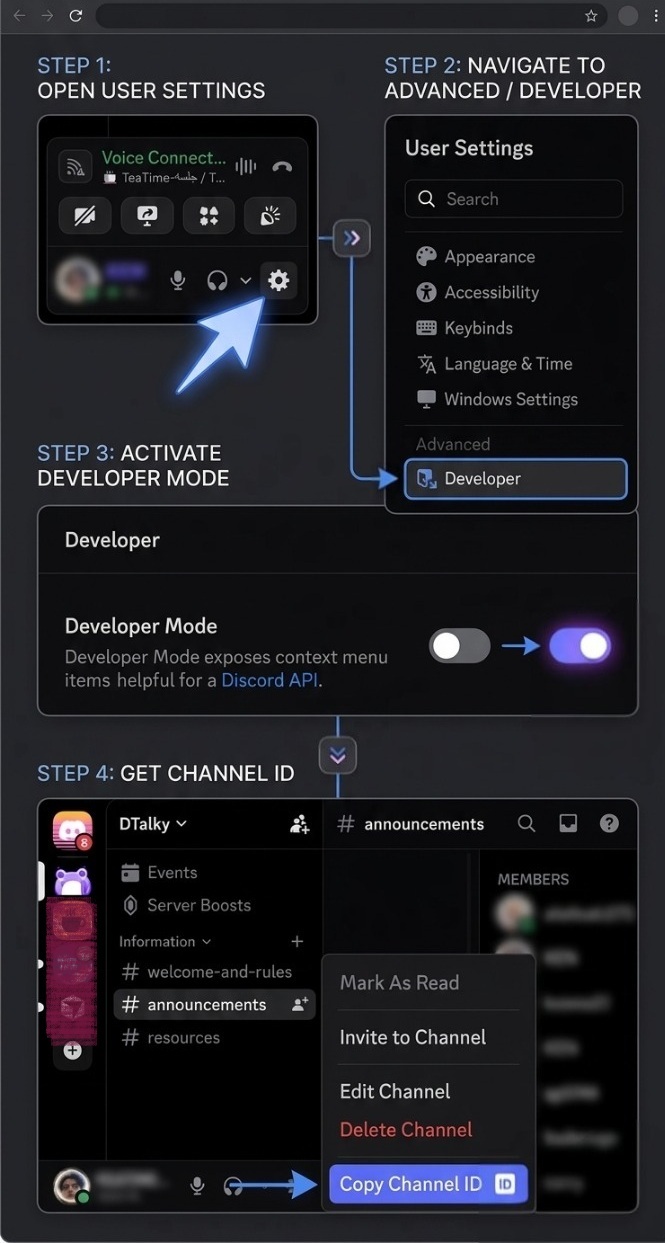
Follow the steps above in Discord, then paste the copied ID into Connect channel in DTalky.
Direct messages & web shortcut
For DMs, paste your friend's User ID in DTalky under Direct message (not their username).
- Right-click or long-press their profile → Copy User ID.
- Group DMs: use Copy Channel ID on that conversation in the sidebar.
- On discord.com you can also read the channel ID from the URL:
discord.com/channels/SERVER_ID/CHANNEL_ID.
Need this again? Open Help — Discord IDs from the sidebar or the ? icon.
WhatsApp setup
Link your WhatsApp account, sync contacts, and add the people you want AI to reply to.
Desktop — two ways to link
- 1
Option 1 — Scan QR (fastest on computer)
Open WhatsApp in DTalky → Show QR code. On your phone: WhatsApp → Linked devices → Link a device → scan the code on screen.
- 2
Option 2 — Pairing code
Enter your WhatsApp number with country code (digits only, e.g.
14155551234) → Get pairing code. On your phone: WhatsApp → Linked devices → Link with phone number → enter the code shown in DTalky.
Mobile — pairing code only
- 1
Enter your number
Country code first, no
+or spaces (US =1, UK =44). - 2
Get & enter the code
Tap Get pairing code, then in the WhatsApp app go to Linked devices → Link with phone number and type the code.
After you're connected
- Contacts sync automatically. If the count stays at 0, tap Refresh contacts or disconnect and link again.
- Add people with Add WhatsApp contact — only 1:1 chats (groups not supported yet).
- Open a contact under Channels, turn AI active on, and set a persona if needed.
- The zap icon in the channel list shows whether AI is on or off.
Personas & AI behavior
Shape how DTalky sounds in each conversation.
Open Personas in the sidebar to create or edit personalities — tone, language, and style. Assign a persona per channel in channel settings.
- Free plan — 1 persona, 25 messages/day.
- Pro plan — up to 5 personas, higher limits, more languages.
- AI only replies when active on that channel and you have messages remaining (see quota in the user menu).
Troubleshooting
Common fixes before reaching out for support.
Discord token not working
Re-run the bookmark on discord.com and paste a fresh token. Make sure it is your user authorization header, not Bot …. Token guide →
Replies not showing up
Confirm the channel is connected, AI is active, and you have daily messages left. Discord can take up to ~30s after saving a new token.
WhatsApp contacts empty
Tap Refresh contacts, keep the app open a minute, or disconnect and re-link. Only existing 1:1 chats appear — start a chat in WhatsApp first if someone is missing.
14155551234). Tap Start over if a previous link is stuck, then try again.Still stuck? Join our Discord community or use the ? button in the app.